New Application
How to add a new Job Application
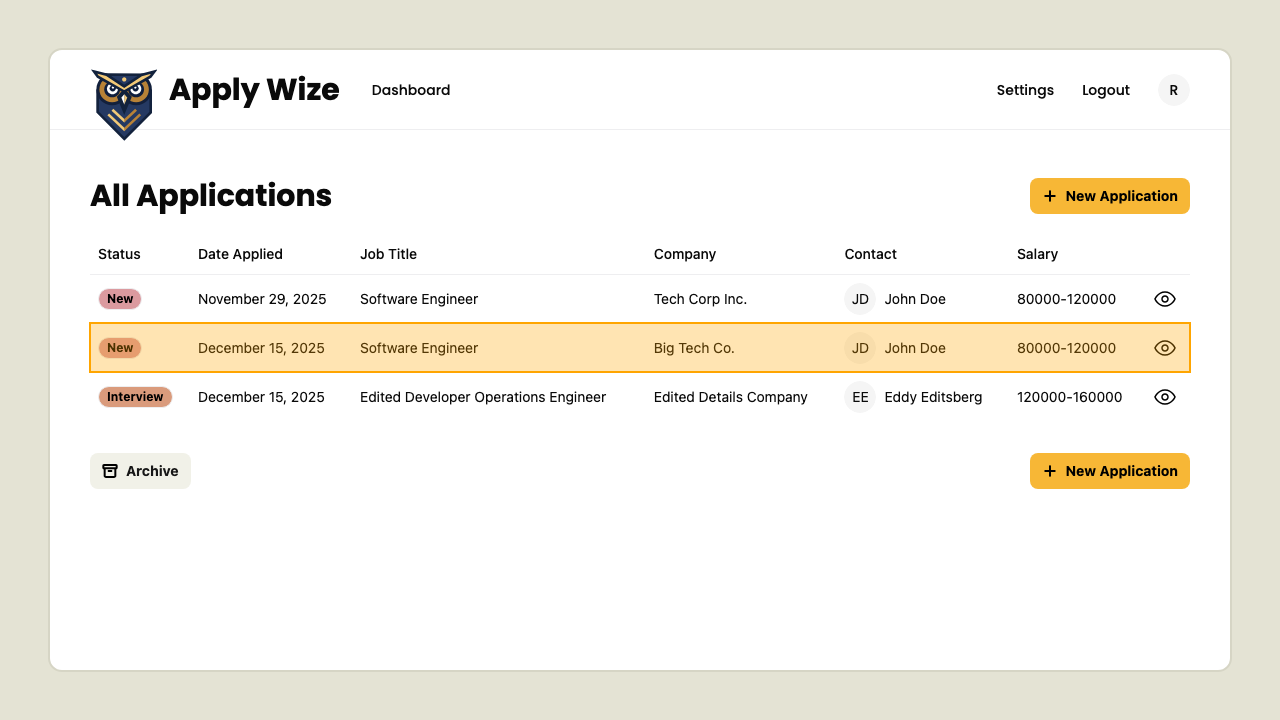
When on the Applications page,
click one of the New Application buttons.
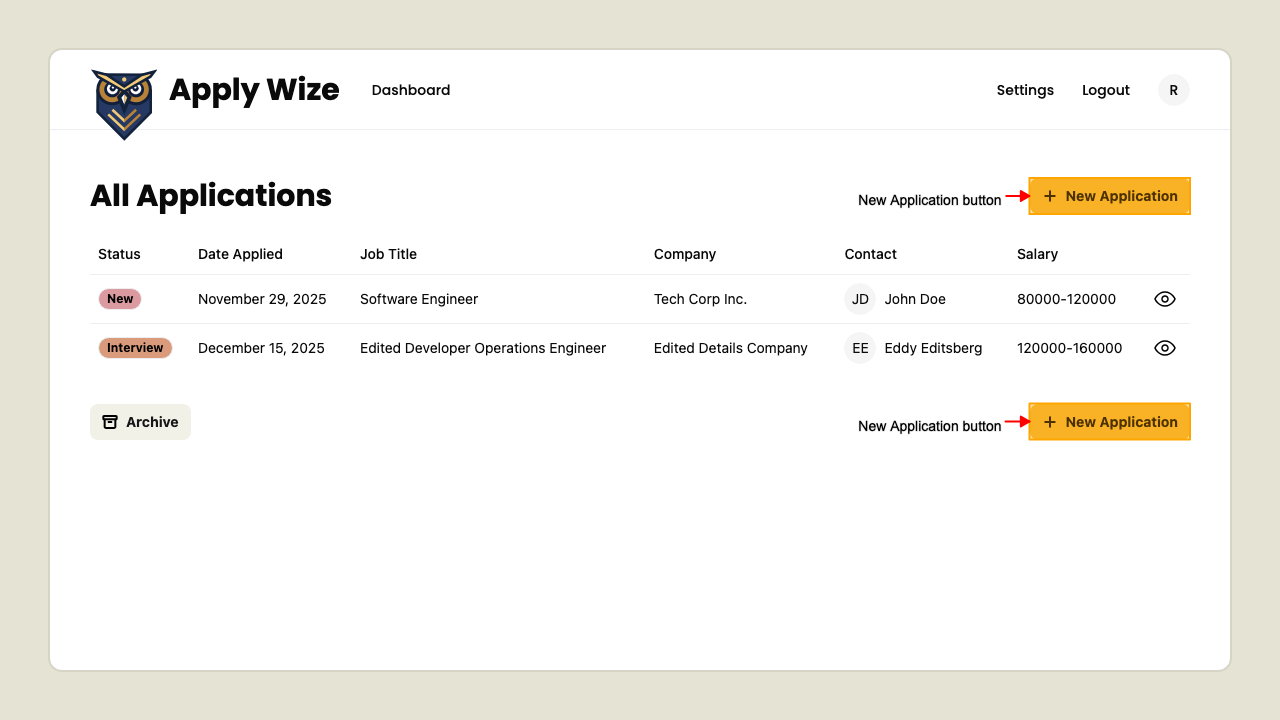 This will navigate to the New Application page.
Fill out the New Application form.
On the left side we have:
- Company Name: The company you want to track.
- Job Title: The position you applied for.
- Job Description / Requirements: Key details about the job.
- Salary Range: The minimum and maximum salary for the position.
- Application URL: Link to the job posting or application page.

Right side of the form includes:
- Date Applied: When you submitted your application.
- Status: Current status of your application (e.g., Applied, Interviewing).
- Contacts: People you are in touch with regarding the application.
Setting the Application submission date
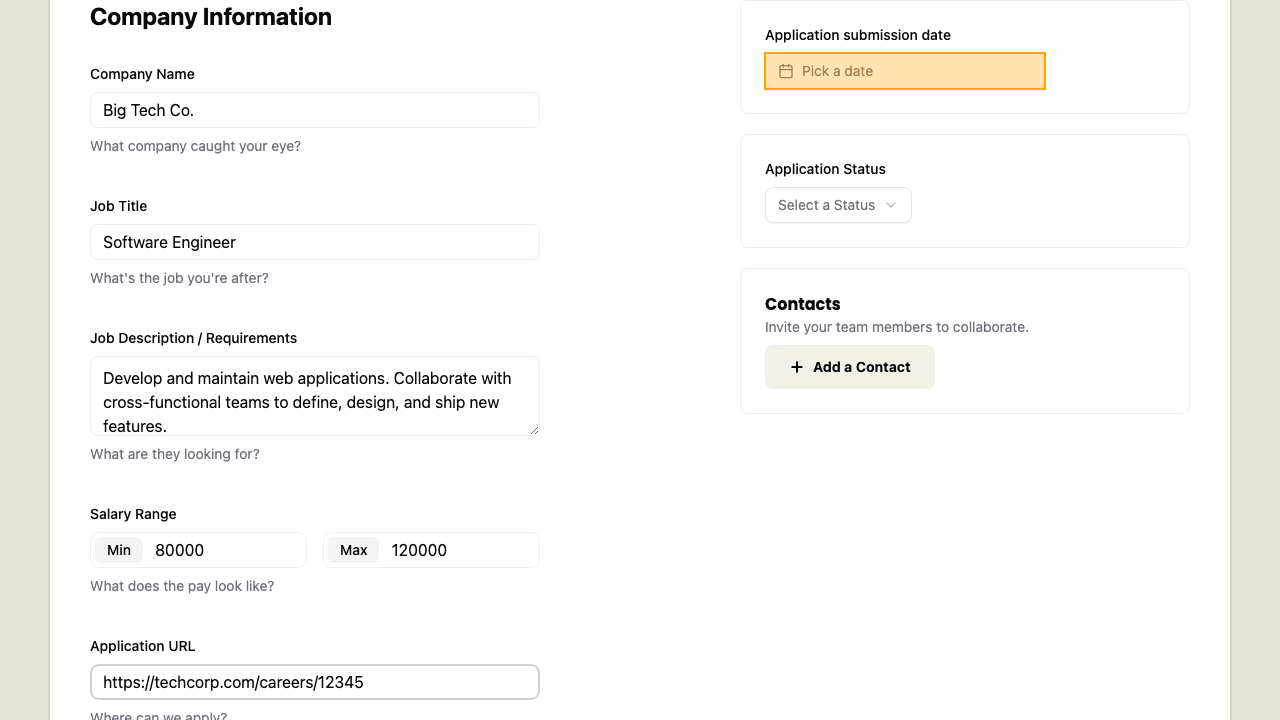 Click the date button to open the date picker.
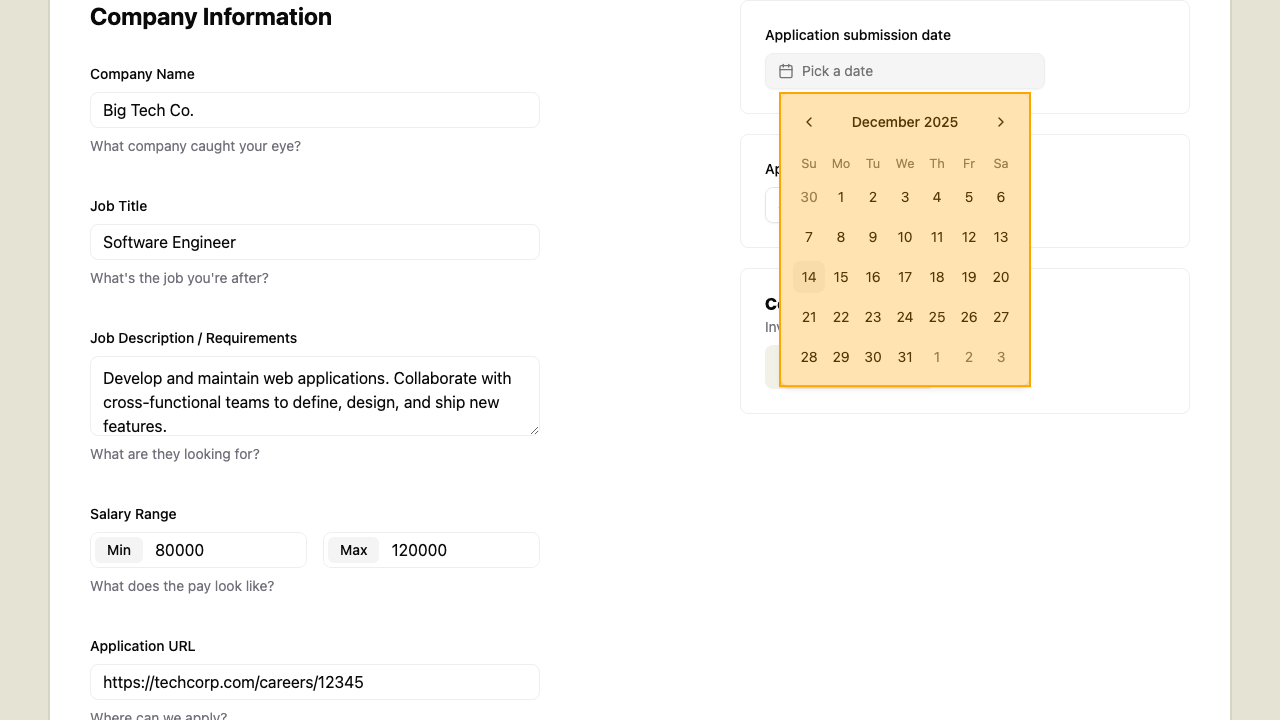 Then click a date to select from the date picker.
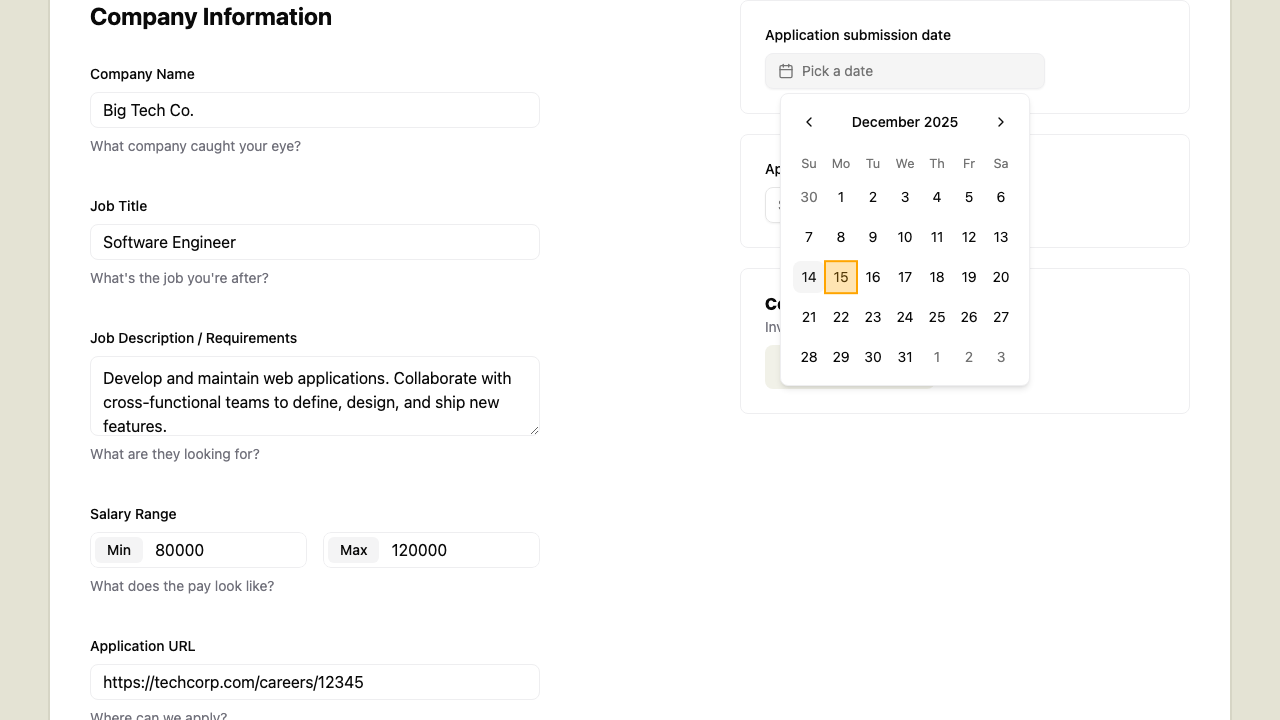
Then to dismiss the date picker:
- Press Escape key.
- Click outside the date picker.
Select one of the Application Statuses
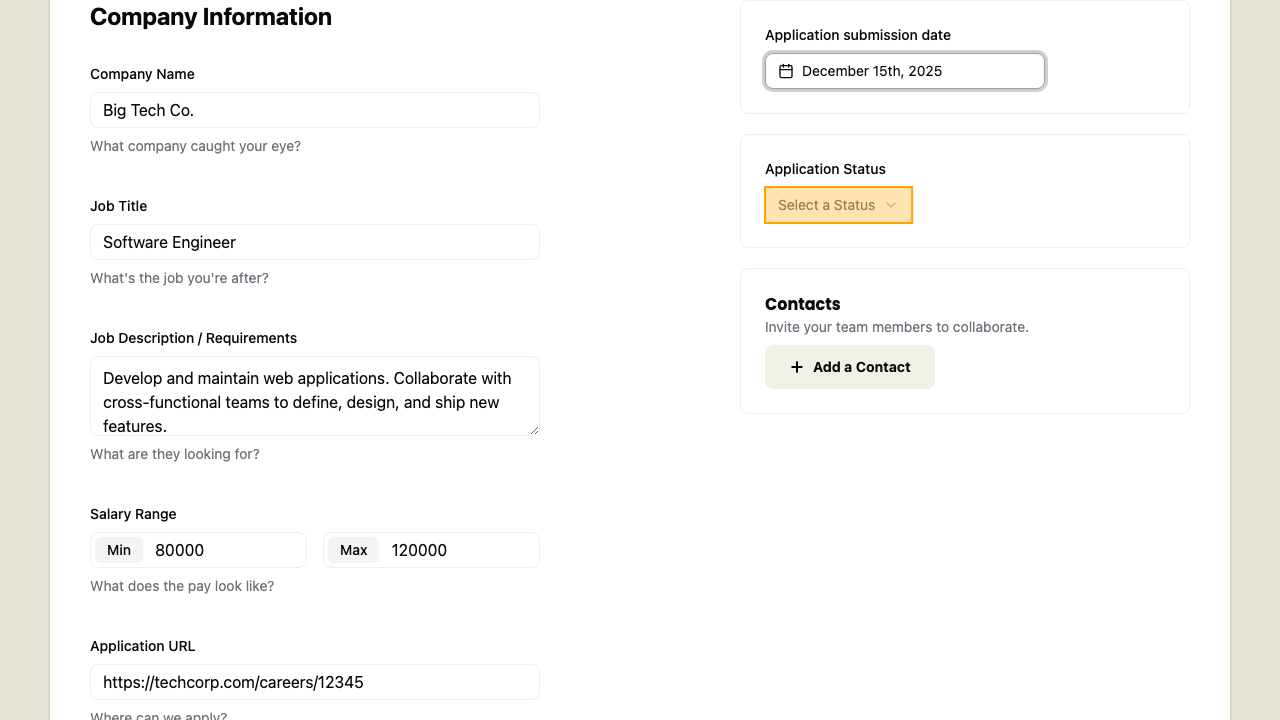 Click the Application Statuses button to open the dropdown
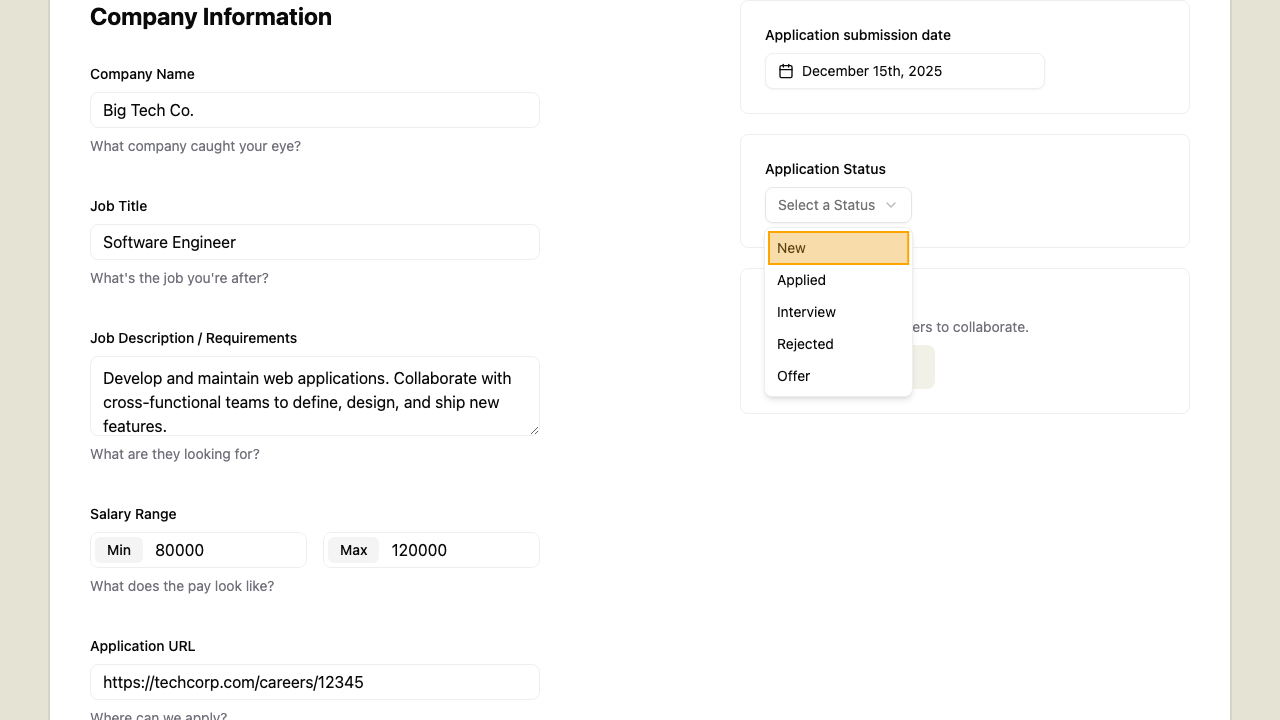
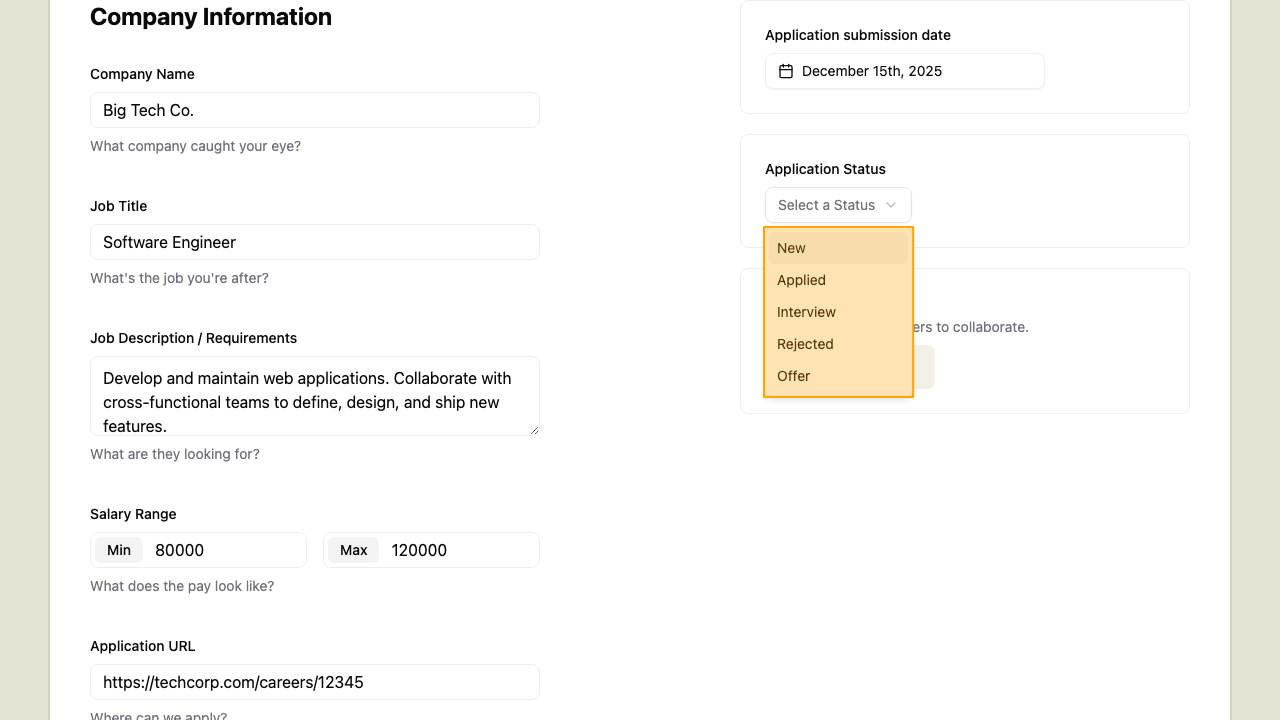 Select one of the application statuses from the dropdown:
- New
- Applied
- Interview
- Rejected
- Offer
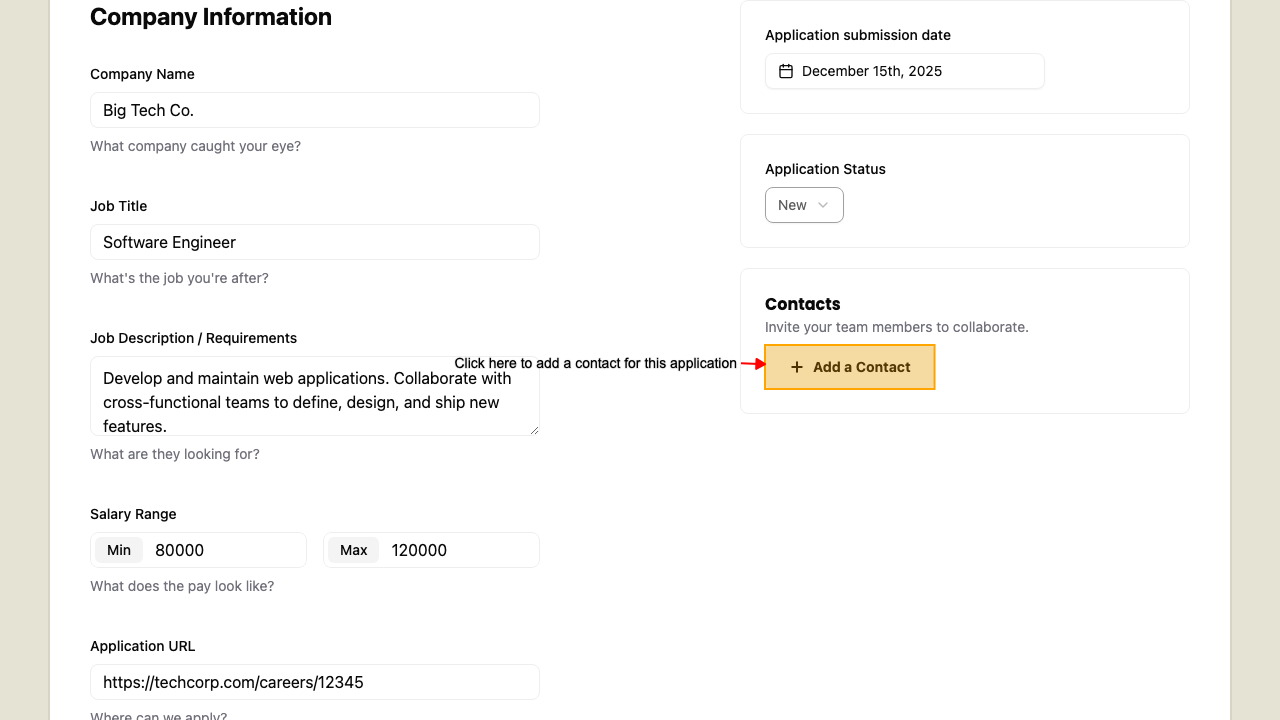
Add a Contact for the Application
Open the Add a Contact sheet by clicking the "Add a contact" button.
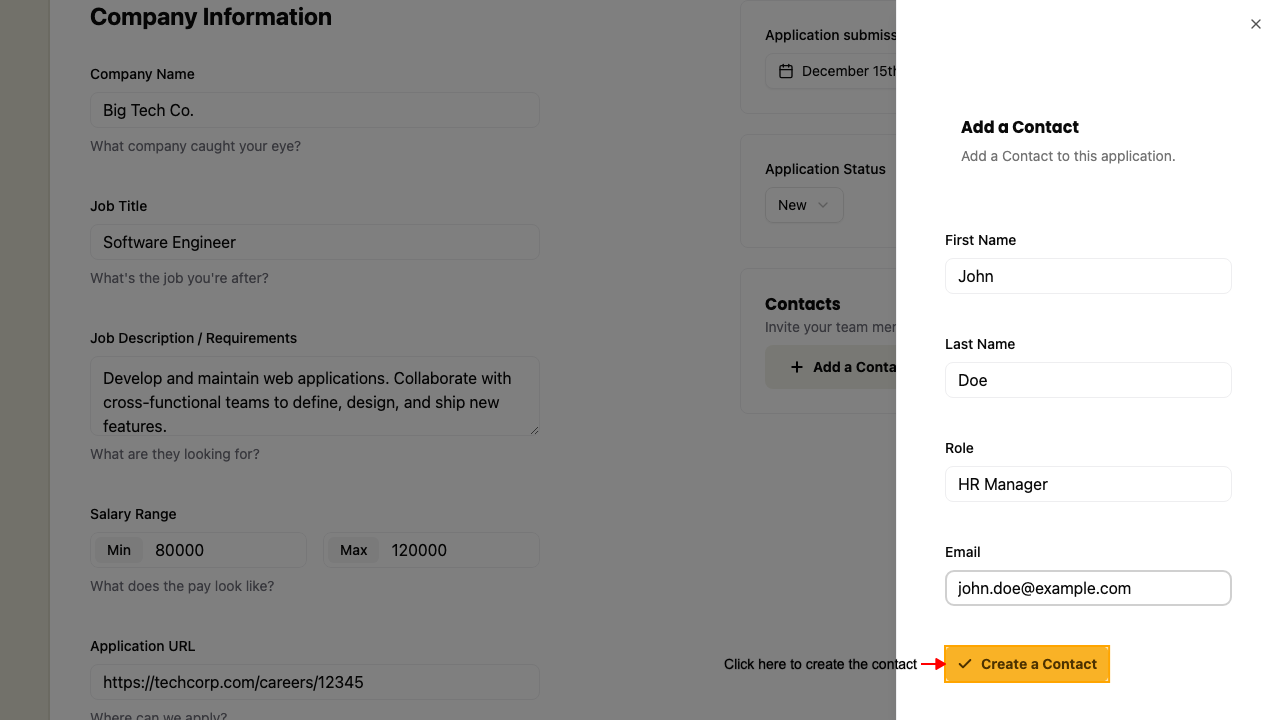
 Enter the contacts information:
- First name
- Last name
- Role in the company
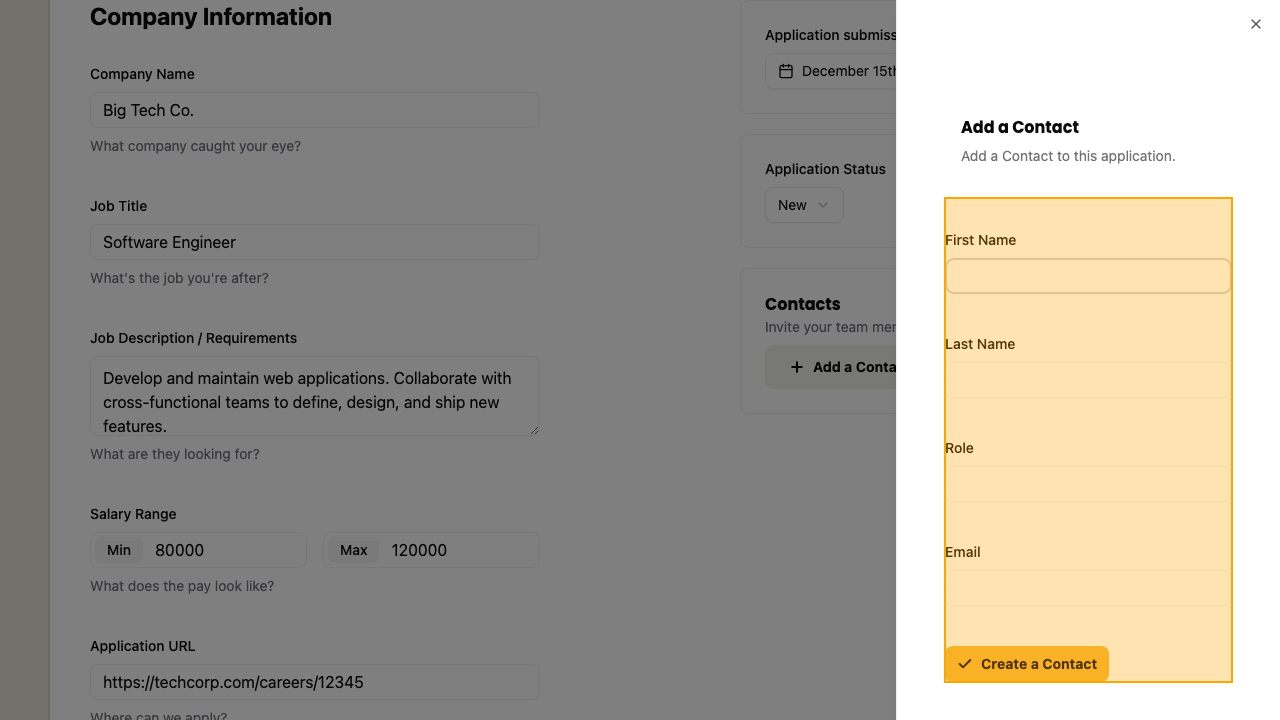 Add the contact by clicking the "Create a Contact" button
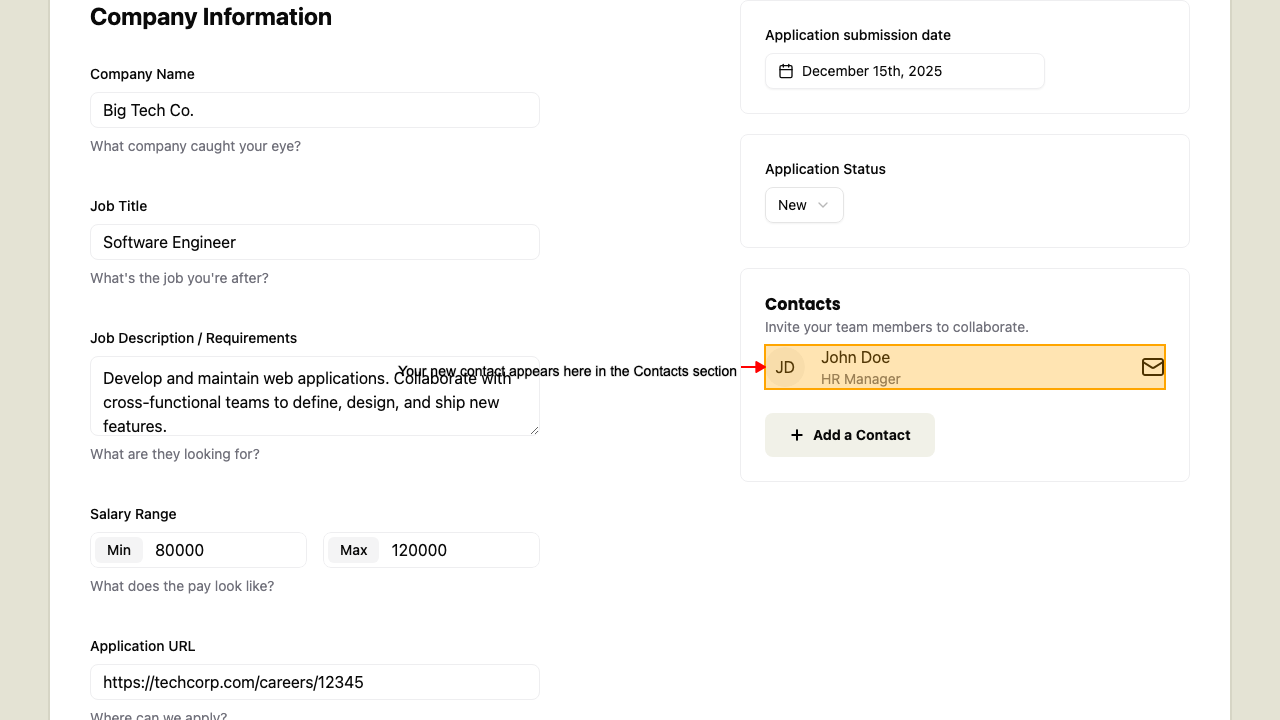
 Your new contact appears in the Contacts section
 Lastly, submit the New Application form by clicking the Create button.
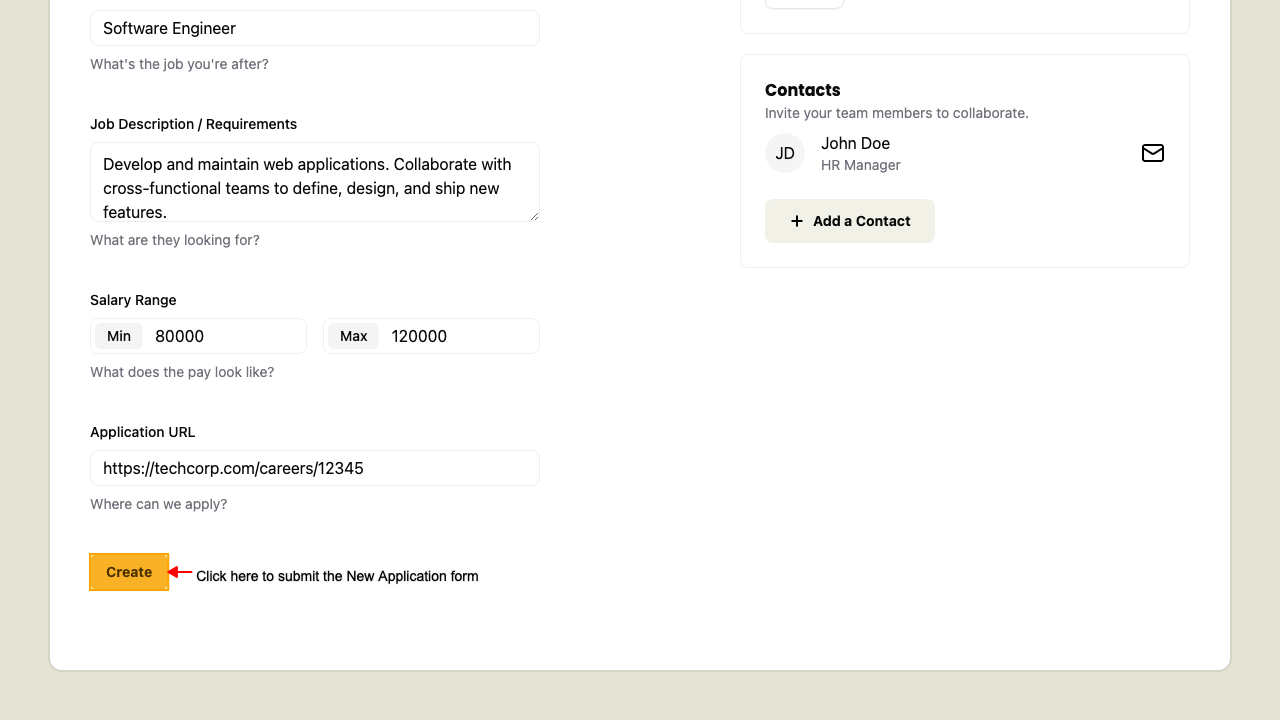 This will navigate back to the Applications Dashboard page where we should find our new application listed.
Breadcrumb Navigation
When on the New Application page,
click the Breadcrumb link.
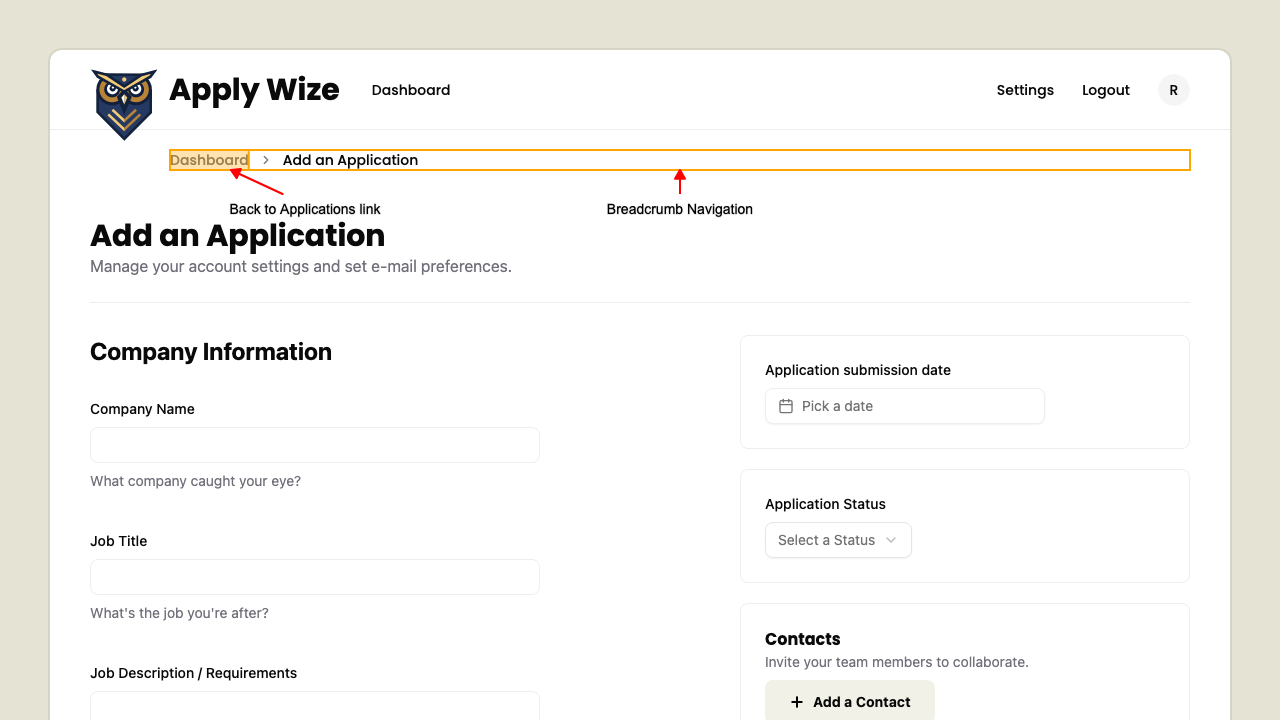 This will navigate back to the Applications Dashboard page.